
With the rise of Machine Learning and Data Scraping, technical skills have become a necessity for those who want to make a living in the finance industry.
Algorithmic Trading is a perfect skill to pick up if you are looking for a sustained source of income outside of your full-time job.
We are going to trade an Amazon stock CFD using a trading algorithm.
The strategy is to buy the dip in prices, commonly known as “Buy the f***ing dip” or “BTFD”. This means that we enter a long trade when Amazon’s stocks fall in the short term.
Here are the steps for coding an algorithmic trading strategy:

 Once you click Start Now, you will instantly be given your account login details.
 Here are your login details, you should also receive them in your email.
Go to your MT4, under File, click ”Login to Trade Account” and key in your account details.
Here are your login details, you should also receive them in your email.
Go to your MT4, under File, click ”Login to Trade Account” and key in your account details.

 Initial settings[/caption]
[caption id="attachment_14439" align="aligncenter" width="490"]
Initial settings[/caption]
[caption id="attachment_14439" align="aligncenter" width="490"] Your edit[/caption]
After you are done, click Ok. Open the Options again. The max bars should show a different number.
Your edit[/caption]
After you are done, click Ok. Open the Options again. The max bars should show a different number.

 Click on the D1 button. This will select the daily chart.
 Each data point on the chart represents one day when the daily chart format is selected.
Uncheck “Scroll the chart to the end on tick coming”. This will prevent the chart from auto-scrolling to the most current data.
Each data point on the chart represents one day when the daily chart format is selected.
Uncheck “Scroll the chart to the end on tick coming”. This will prevent the chart from auto-scrolling to the most current data.
 In order to collect as much Amazon price data as we can, click on your Amazon chart and scroll back to earlier dates.
You can do this by scrolling with your mouse wheel. Alternatively, continuously click the Home button on your keyboard (this is faster).
Keep scrolling until the chart stops moving. That is the limit.
In order to collect as much Amazon price data as we can, click on your Amazon chart and scroll back to earlier dates.
You can do this by scrolling with your mouse wheel. Alternatively, continuously click the Home button on your keyboard (this is faster).
Keep scrolling until the chart stops moving. That is the limit.
 In your MetaEditor, the navigator should already be open. If it is not, open it here:
 The navigator contains a list of MQL4 code in your computer that you can access.
Right-click on the “Experts” folder and click “Open Folder”. Put both mq4 files that you downloaded into this folder.
Refresh the list and you will see them there.
The navigator contains a list of MQL4 code in your computer that you can access.
Right-click on the “Experts” folder and click “Open Folder”. Put both mq4 files that you downloaded into this folder.
Refresh the list and you will see them there.


 This portion will run every time a price change happens.
A trade is fired using the code from line 51 to 65. It uses the OrderSend() function to fire a trade.
Think of a function as an entity that takes in some input and does something or spits out some output.
In our case, OrderSend() takes in 11 pieces of information on the trade to be fired, and it fires the trade.
This is an explanation of the OrderSend() function:
This portion will run every time a price change happens.
A trade is fired using the code from line 51 to 65. It uses the OrderSend() function to fire a trade.
Think of a function as an entity that takes in some input and does something or spits out some output.
In our case, OrderSend() takes in 11 pieces of information on the trade to be fired, and it fires the trade.
This is an explanation of the OrderSend() function:
 Optional reading: you can read more about this function here via its documentation.
Line 49 will only happen if the If statements on lines 48 and 49 are True.
Line 48 checks if we have an existing trade. If we don’t, we move on to line 49.
We have left line 49 blank as this is where you need to code your entry rule.
Optional reading: you can read more about this function here via its documentation.
Line 49 will only happen if the If statements on lines 48 and 49 are True.
Line 48 checks if we have an existing trade. If we don’t, we move on to line 49.
We have left line 49 blank as this is where you need to code your entry rule.
 The exit rule is coded for you as the 6th and 7th parameters in our OrderSend() function.
 If you want your code to look bold and larger like mine, go to Tools/Options…/Font and edit your font.
 The compile button checks for errors. If there are no errors, it creates a version of your code that the computer can read.
 Key in the information as shown below. For the dates, make sure you choose a starting date where you have data for. To check this, scroll on your Amazon chart to the earliest point as shown in the earlier step.
 This earliest point is the earliest date you can set your start date as.
Click “Start” when you are ready!
This earliest point is the earliest date you can set your start date as.
Click “Start” when you are ready!
 Okay, you’ve just done your first backtest of a trading algorithm! Congratulations!
Click on the Report tab to see the performance.
Okay, you’ve just done your first backtest of a trading algorithm! Congratulations!
Click on the Report tab to see the performance.
 We’ve made $40K in the last 7 years with a starting capital of $50K.
Well, that sucks considering if you had just bought and held Amazon through it all, you would have made about $400K.
Just base on this backtest, I won’t say that algorithmic trading doesn’t work. Most algorithms are more complicated and intelligent than this.
However, this backtest does show that buying the dip aimlessly loses to holding. No surprise here, especially since the stock we’re trading is a rocket ship like Amazon.
We’ve made $40K in the last 7 years with a starting capital of $50K.
Well, that sucks considering if you had just bought and held Amazon through it all, you would have made about $400K.
Just base on this backtest, I won’t say that algorithmic trading doesn’t work. Most algorithms are more complicated and intelligent than this.
However, this backtest does show that buying the dip aimlessly loses to holding. No surprise here, especially since the stock we’re trading is a rocket ship like Amazon.
 To run live strategies, click the “Enable Automated Trading” button
 Open Amazon’s price chart.
Open your navigator in MT4 (not the MetaEditor) if it isn’t already open.
When Amazon’s price chart is open, right-click on your algorithm and click “Attach to a chart”.
Open Amazon’s price chart.
Open your navigator in MT4 (not the MetaEditor) if it isn’t already open.
When Amazon’s price chart is open, right-click on your algorithm and click “Attach to a chart”.
 That’s it! It is live!
The moment you shut down your MT4, the algorithm will go offline. Thus, to run strategies 24/5, we set up our algorithms in the cloud.
If you want to remove the algorithm, right-click on the chart. Go to Expert Advisors/Remove.
Note that this strategy is just for educational purposes and we don’t recommend you run this strategy live on real money.
Moreover, this algorithm is stripped down to its bare bones so that its code is easy to understand. It doesn’t contain any risk management or notification systems.
Go make a cup of coffee and appreciate your work
0.5 minutes (Time elapsed: 25 minutes)
I hope you are feeling pretty good about yourself now.
Even if you do not plan to trade with algorithms, you can use them to test and improve your ideas. The trades can then be entered manually.
Hope you’ve enjoyed this guide!
Disclaimer: Being successful at algorithmic trading (or manual trading) is tough. It is not a get-rich-quick method and requires hard work.
If you want to code strategies that are 10X cooler, check out my online course with over 30K students! - AlgoTrading101.
That’s it! It is live!
The moment you shut down your MT4, the algorithm will go offline. Thus, to run strategies 24/5, we set up our algorithms in the cloud.
If you want to remove the algorithm, right-click on the chart. Go to Expert Advisors/Remove.
Note that this strategy is just for educational purposes and we don’t recommend you run this strategy live on real money.
Moreover, this algorithm is stripped down to its bare bones so that its code is easy to understand. It doesn’t contain any risk management or notification systems.
Go make a cup of coffee and appreciate your work
0.5 minutes (Time elapsed: 25 minutes)
I hope you are feeling pretty good about yourself now.
Even if you do not plan to trade with algorithms, you can use them to test and improve your ideas. The trades can then be entered manually.
Hope you’ve enjoyed this guide!
Disclaimer: Being successful at algorithmic trading (or manual trading) is tough. It is not a get-rich-quick method and requires hard work.
If you want to code strategies that are 10X cooler, check out my online course with over 30K students! - AlgoTrading101.
- Choose product to trade.
- Choose and install software.
- Set up an account with a broker.
- Understand our strategy.
- Understand and setting up your MT4.
- Understand the parts of a MT4 trading algorithm.
- Code the rules for entering and exiting trades.
- Run a historical test with your algorithm.
- Run it live on fake money.
- Go make a cup of coffee and appreciate your work
Choose product to trade.
0 minutes We are trading the Amazon stock CFD. CFD stands for contract for difference. It is a derivative that mimics the movements of actual stock. You can find more information here.Choose and install software.
4 minutes (Time elapsed: 4 minutes) We will use ThinkMarkets as our broker. Our software will be MetaTrader 4 (MT4). MT4’s strength is that it is beginner friendly, which was why we chose it. However, the downside is that you can’t run heavy statistical analysis or complex machine learning strategies with it. Download the ThinkMarkets MT4 software here. Open the installer and follow the instructions.
Set up an account with a broker.
2 minutes (Time elapsed: 6 minutes) After installation, your MT4 should launch automatically. If it doesn’t, go to the folder where it is installed and open it manually. Set up an account with Thinkmarkets via their website: Set up demo account. Input your personal details and check Standard Account.
Once you click Start Now, you will instantly be given your account login details.
Here are your login details, you should also receive them in your email.
Go to your MT4, under File, click ”Login to Trade Account” and key in your account details.
Understand our strategy.
3 minutes (Time elapsed: 9 minutes) We want to buy when Amazon dips. But in algorithmic trading, the word “dip” has to be quantified so that the computer understands it. In our case, we shall enter the trade when the ask price of Amazon is lower than its lowest price in the last 10 trading days. Why 10? It is arbitrary. We usually run backtests and optimizations to determine this number. But for today, we will keep it simple and choose an arbitrary number. On every trade, we will spend all the money in our account to buy the maximum number of shares possible. This is aggressive and I don’t recommend it for live trading, but since we are testing on fake money, let’s have some fun. Only one trade will be held at the time. We will close the trade when the price moves up by 30% (profitable exit) or moves down by 10% (loss-making exit). For instance, if we enter at $1600, we will close the trade at either $2080 or $1440. Again, these are all arbitrary figures.Understand and set up your MT4.
4 minutes (Time elapsed: 13 minutes) We won’t run through every part of MT4. You can learn the ins and outs of MT4 here in your free time. We want to do 3 things for now:- Increase your chart size
- Collect price data on Amazon
- Download our robot template into your MT4
Increase your chart size.
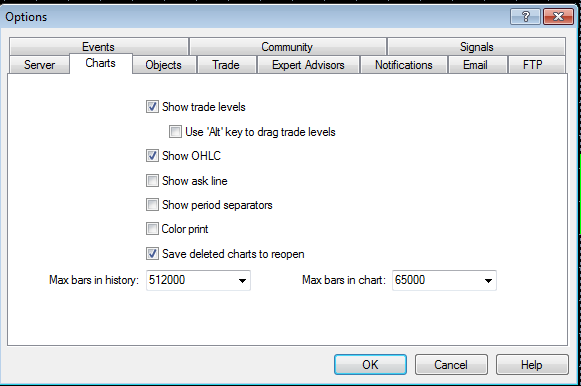
The initial chart can hold 65000 data points. Let’s increase that. Under Tools/Options, change the “Max bars in history” and “Max bars in chart” to 9999999999. [caption id="attachment_14438" align="aligncenter" width="581"] Initial settings[/caption]
[caption id="attachment_14439" align="aligncenter" width="490"] Your edit[/caption]
After you are done, click Ok. Open the Options again. The max bars should show a different number.
Collect price data on Amazon.
To do this, we need to open the Amazon stock CFD chart and scroll back to the earlier time period. This will force MT4 to collect more past data. Right-click anywhere on your Market Watch tab, click “Show All” to show all the products you can trade. Scroll down to find the Amazon symbol. Right-click and click on “Chart Window” to open the chart.
Click on the D1 button. This will select the daily chart.
Each data point on the chart represents one day when the daily chart format is selected.
Uncheck “Scroll the chart to the end on tick coming”. This will prevent the chart from auto-scrolling to the most current data.
In order to collect as much Amazon price data as we can, click on your Amazon chart and scroll back to earlier dates.
You can do this by scrolling with your mouse wheel. Alternatively, continuously click the Home button on your keyboard (this is faster).
Keep scrolling until the chart stops moving. That is the limit.
Download our robot template into your MT4.
Our robot is called BTFD_StockBot. Download both the incomplete version and completed version here if you haven’t: Download link. The incomplete version has some blanks for you to fill for practice. The complete version is the full working algorithm. Open your MetaEditor by clicking the book symbol. The MetaEditor is where you will code your algorithms.
In your MetaEditor, the navigator should already be open. If it is not, open it here:
The navigator contains a list of MQL4 code in your computer that you can access.
Right-click on the “Experts” folder and click “Open Folder”. Put both mq4 files that you downloaded into this folder.
Refresh the list and you will see them there.
Understand the parts of an MT4 trading algorithm.
6 minutes (Time elapsed: 19 minutes) The programming language you are going to code in is called MQL4. An MT4 trading algorithm is called an EA (short for Expert Advisor). There isn’t time to go through and teach you every line of code in our algorithm. However, we will cover to most basic parts. This will be just enough for you to modify the template. Here is a crash course on how to read code:- The computer reads and runs the code from top to bottom.
- All black words are variables. Think of variables as entities that store values (similar to algebra!)
- “+” stands for add, “-“ stands for subtract, “*” stands for multiply, “/” stands for divide.
- “>” stands for greater than, “<” stands for less than.
- “=” tells the computer something equals to something else
- “==” tells the computer to check if something is equals to something else
- Anything written on the right side of the “//” symbol is not read by the computer. It is there to guide you. These are called code comments. Anything written between a “/*” and a “*/” is a code comment too.
- Code are usually based on logic statements (aka If statements). We are telling the computer to do something if something else happens. It is coded this way: “
- Setup
- Main body (This is where we write the code to enter or exit the trade)
Setup
The setup area is from line 1 to 25. The lines that are of interest are lines 10 and 11. This is where we set our levels for taking profit or losses.
Main body
The main body mainly contains the OnTick() area. The OnTick() area starts from line 27 to 70.
This portion will run every time a price change happens.
A trade is fired using the code from line 51 to 65. It uses the OrderSend() function to fire a trade.
Think of a function as an entity that takes in some input and does something or spits out some output.
In our case, OrderSend() takes in 11 pieces of information on the trade to be fired, and it fires the trade.
This is an explanation of the OrderSend() function:
Optional reading: you can read more about this function here via its documentation.
Line 49 will only happen if the If statements on lines 48 and 49 are True.
Line 48 checks if we have an existing trade. If we don’t, we move on to line 49.
We have left line 49 blank as this is where you need to code your entry rule.
The exit rule is coded for you as the 6th and 7th parameters in our OrderSend() function.
If you want your code to look bold and larger like mine, go to Tools/Options…/Font and edit your font.
Code the rules for entering and exiting trades.
4 minutes (Time elapsed: 23 minutes) We enter the trade when the ask price of Amazon is lower than its lowest price in the last 10 trading days. This has to be represented in code form. Take a second to think about how to structure this code. … … Alright here goes. This is how we can transform our trading rule from words to code:Ask price of Amazon is lower than the lowest price in the last 10 trading days (Original Statement)
Ask price of Amazon < the lowest price in the last 10 trading days // replace “less than” with the symbol “<”)
Ask < the lowest price in the last 10 trading days // replace “Ask price of Amazon” with “Ask”
Ask < Low price of the data point that contains the lowest price in the last 10 trading days
Ask < iLow(Symbol(), 0, (data point that contains the lowest price in the last 10 trading days)) // iLow() is a function that gives us the low price of a certain data point. More info here. The first input is the product we are trading. The second is the timeframe, 0 stands for default timeframe that we will set later. The third is the data point ID that we are getting the low price of.
Ask < iLow(Symbol(), 0, (iLowest(Symbol(), 0, MODE_LOW, 10, 1))) // iLowest() gives us the data point that contains the lowest price. More info here.
That is quite a handful. How would you have known to code iLow() and iLowest()?
The answer is, you wouldn’t.
When learning a new (non-programming) language, you won’t know what the words are for “yes” and “no”. You need to learn that from books, websites or friends.
Similarly, we do the same for programming languages. Thanks to Google, searching for programming help is easy.
Search for the term “MQL4 lowest price” and the solution should appear in the top 3 results.
Don’t worry if you don’t understand every part of the code for now. We are just building up your intuition at this point.
Insert that last line of code into your If statement in line 49.
You can take a look at BTFD_StockBot_Complete.mq4 now to compare the correct code to what you’ve coded.
Once done, click on the compile button.
The compile button checks for errors. If there are no errors, it creates a version of your code that the computer can read.
Run a historical test with your algorithm.
1 minute (Time elapsed: 24 minutes) Now for the fun part. We will test our trading strategy to see how it would have performed over the last 7 years. Open the Strategy Tester from your MT4 platform (not your MetaEditor).
Key in the information as shown below. For the dates, make sure you choose a starting date where you have data for. To check this, scroll on your Amazon chart to the earliest point as shown in the earlier step.
This earliest point is the earliest date you can set your start date as.
Click “Start” when you are ready!
Okay, you’ve just done your first backtest of a trading algorithm! Congratulations!
Click on the Report tab to see the performance.
We’ve made $40K in the last 7 years with a starting capital of $50K.
Well, that sucks considering if you had just bought and held Amazon through it all, you would have made about $400K.
Just base on this backtest, I won’t say that algorithmic trading doesn’t work. Most algorithms are more complicated and intelligent than this.
However, this backtest does show that buying the dip aimlessly loses to holding. No surprise here, especially since the stock we’re trading is a rocket ship like Amazon.
Run it live.
0.5 minutes (Time elapsed: 24.5 minutes) The previous step was a historical test. Now, we will run this live on today’s market using demo money. Your demo account should have 100,000 USD of virtual money to play with. This is not real money so don’t worry about losing it. You can open the Terminal Tab to check how much virtual money you have.
To run live strategies, click the “Enable Automated Trading” button
Open Amazon’s price chart.
Open your navigator in MT4 (not the MetaEditor) if it isn’t already open.
When Amazon’s price chart is open, right-click on your algorithm and click “Attach to a chart”.
That’s it! It is live!
The moment you shut down your MT4, the algorithm will go offline. Thus, to run strategies 24/5, we set up our algorithms in the cloud.
If you want to remove the algorithm, right-click on the chart. Go to Expert Advisors/Remove.
Note that this strategy is just for educational purposes and we don’t recommend you run this strategy live on real money.
Moreover, this algorithm is stripped down to its bare bones so that its code is easy to understand. It doesn’t contain any risk management or notification systems.
Go make a cup of coffee and appreciate your work
0.5 minutes (Time elapsed: 25 minutes)
I hope you are feeling pretty good about yourself now.
Even if you do not plan to trade with algorithms, you can use them to test and improve your ideas. The trades can then be entered manually.
Hope you’ve enjoyed this guide!
Disclaimer: Being successful at algorithmic trading (or manual trading) is tough. It is not a get-rich-quick method and requires hard work.
If you want to code strategies that are 10X cooler, check out my online course with over 30K students! - AlgoTrading101.
Lucas Liew runs AlgoTrading101, an online algorithmic trading course and mentorship program with over 30,000 members. He worked at a proprietary trading firm, hedge fund and taught financial programming to Government of Singapore Investment Corporation (GIC), one of the largest sovereign wealth funds in the world. Lucas has been featured on Investopedia and is one of the most viewed writers on Algorithmic Trading on Quora.
More in Data Science & Analytics
Quality Data, Quality Decisions: Why Web Scraping is Essential for Advanced Analytics
Gediminas Rickevičius·9 min
Supply Chain Blind Spots: The Psychology of Hidden Risks
Flavio Aliberti·5 min
What are we solving with analytics?
Michiko Wolcott·6 min