
Alternative data is now being hailed as the new oil. These data sets give a unique and timely view of the market and various industries. They provide valuable insights and help us predict events long before traditional news outlets. Two of the companies on the forefront of this data revolution are Quandl and RS Metrics.
These companies have used satellite imagery and geospatial analytics to provide a novel form of alternative data. Using advanced computer vision and Machine Learning, RS Metrics provides ready-to-use data related to ground activities. One of their popular datasets is the MetalSignals set, which can now be used via the Quandl API.
In this article, I will explain how you can derive the MetalSignals data set, clean up, do some Exploratory Data Analysis on them and obtain some insightful visualizations from them using Python.
 Some use cases of this data include:
 Quandl also provides some free sample data that you can play around within JSON format. You can access this data through API calls to:
https://www.quandl.com/api/v3/datatables/RSM/MSB/delta.json?api_key=”YOUR API KEY”
or:
https://www.quandl.com/api/v3/datatables/RSM/MSI/delta.json?api_key=”YOUR API KEY”
Quandl also provides some free sample data that you can play around within JSON format. You can access this data through API calls to:
https://www.quandl.com/api/v3/datatables/RSM/MSB/delta.json?api_key=”YOUR API KEY”
or:
https://www.quandl.com/api/v3/datatables/RSM/MSI/delta.json?api_key=”YOUR API KEY”
 1. Before anything else, import the required libraries. In our EDA, we will need pandas, matplotlib, plotly express and cufflinks. If you don’t already have these installed, you can get them installed first using the pip install command.
 You can also take a look at the last five records using the .tail() function.
 So now we know that our data is comprised of 27,872 rows and 44 columns. That’s a lot of columns! It probably has some columns that are not really that necessary.
 All these columns can be removed using the drop command:
 We managed to bring the number of columns down to 38.

 We can see that our data set has 10 float, 4 integer and 23 object values and that some of the fields, like ‘country’, ‘areaanodes’, etc. have some values missing, since, the total number of records in them are less than 27872. For country, we can solve this problem simply by adding the line:
 Using this function, you get the count, mean, standard deviation, minimum and maximum values, as well as different percentiles of the data. The Standard deviation (std) provides a useful means to look at the distribution of data. A high deviation indicates that the values are more spread out (flatter)...
 By looking at the mean and 50th percentile (median), we can gauge the skewness of the distribution. A very high mean compared to the median will mean that there are some records with very high values.
The differences between the 75th percentile and the max value can also inform us that most of our columns are skewed. This means that there are some extreme values or outliers in the data set.
We may need to winsorize or trim some extreme values in future, if a normal distribution is desired.
Let’s now try to visualize the data to explore further.
By looking at the mean and 50th percentile (median), we can gauge the skewness of the distribution. A very high mean compared to the median will mean that there are some records with very high values.
The differences between the 75th percentile and the max value can also inform us that most of our columns are skewed. This means that there are some extreme values or outliers in the data set.
We may need to winsorize or trim some extreme values in future, if a normal distribution is desired.
Let’s now try to visualize the data to explore further.

 Although this gets the job done, you can get a more visual and helpful way to look at the correlations if you combine this with cufflink’s iplot command. It is a bit more work but who doesn’t love some slick visualizations?
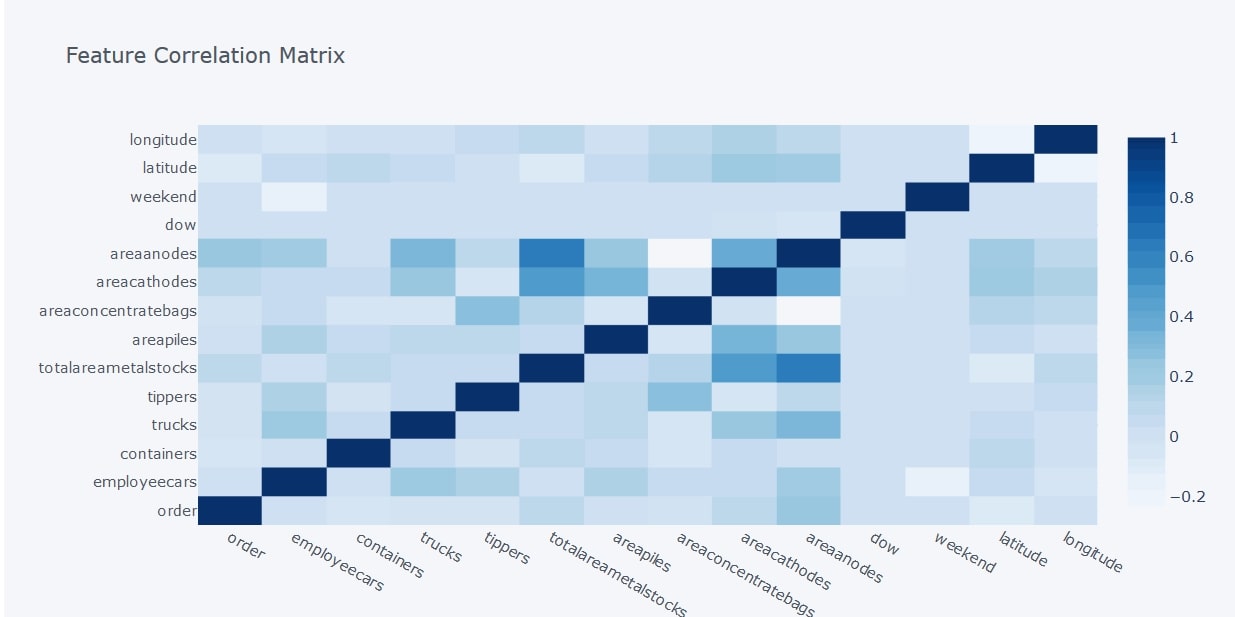 This command gives you a correlation heatmap which helps better visualize the data. The darker shades represent a higher positive correlation and lighter shades represent a lower correlation.
From the above heatmap, we can see that there is a strong positive correlation between the total area of cathodes and anodes, which makes sense because it’s the anodes that get purified to make the cathodes. There also seems to be a strong positive correlation between the total area of metal stocks and the area of anodes. The values for anode and cathode deposits only apply to copper. So the heat map tells us that most of the copper metal stocks are unpurified.
We also notice that there is almost no correlation between the total area of bagged concentrates on-site and the area of anodes, and the number of employee cars on a day does not really depend upon whether it’s a weekend or not.
This command gives you a correlation heatmap which helps better visualize the data. The darker shades represent a higher positive correlation and lighter shades represent a lower correlation.
From the above heatmap, we can see that there is a strong positive correlation between the total area of cathodes and anodes, which makes sense because it’s the anodes that get purified to make the cathodes. There also seems to be a strong positive correlation between the total area of metal stocks and the area of anodes. The values for anode and cathode deposits only apply to copper. So the heat map tells us that most of the copper metal stocks are unpurified.
We also notice that there is almost no correlation between the total area of bagged concentrates on-site and the area of anodes, and the number of employee cars on a day does not really depend upon whether it’s a weekend or not.
 The box represents the first quartile (1), median (2) and third quartile(3), in other words, the Interquartile Range (IQR). The whiskers extend to show the minimum (5) and maximum (4) values.
Let’s make a country-wise box plot of employee cars that the satellites picked up.
The box represents the first quartile (1), median (2) and third quartile(3), in other words, the Interquartile Range (IQR). The whiskers extend to show the minimum (5) and maximum (4) values.
Let’s make a country-wise box plot of employee cars that the satellites picked up.
 Boxplots are a great way to quickly find outliers in the data too. For example, if you zoom in to the box plots for France, Japan and the UK, you will find:
 There are no outliers for the data picked up in France, just a few outliers in the UK data and a lot of outliers in the Japan data.
You can also plot aggregated values from Pivot tables. For example, say you want to see the country-wise distribution of the total area of metal stocks. You can then obtain the box plot for it as follows:
There are no outliers for the data picked up in France, just a few outliers in the UK data and a lot of outliers in the Japan data.
You can also plot aggregated values from Pivot tables. For example, say you want to see the country-wise distribution of the total area of metal stocks. You can then obtain the box plot for it as follows:
 This shows that the variable is right-skewed. In other words, the probability of finding larger areas of metal in the distribution is less than that of smaller areas.
 This allows us to see copper deposits year-wise for different countries. There is a ‘zoom’ button that plotly express provides, allowing us to zoom into certain points on the chart. Let us zoom into the year 2018-2019 and see how the numbers have been the past 3 months.
 We can see that, over the past 3 months, copper reserves in China have been increasing consistently. This could imply the global demand for copper is on the rise and hence an increase in copper price.
Another way we can visualize this data is to plot the chart according to port/region:
We can see that, over the past 3 months, copper reserves in China have been increasing consistently. This could imply the global demand for copper is on the rise and hence an increase in copper price.
Another way we can visualize this data is to plot the chart according to port/region:
 This lets us identify the reserve level of an individual smelter. When combined with Global Supply Chain Relationships Data, we can predict the production activities of public companies who rely on copper as a raw material. One potential use case is to monitor the production of Tesla’s copper(key component in EV battery) suppliers to forecast the carmaker’s ability to meet production targets.
This sums up our EDA guide. In the next few parts of the series, we will form more hypotheses as well as explore the potential use case of the dataset when combined with other alternative data.
Do you have a unique idea or questions on how to use the dataset? Let me know in the comments section below!
This lets us identify the reserve level of an individual smelter. When combined with Global Supply Chain Relationships Data, we can predict the production activities of public companies who rely on copper as a raw material. One potential use case is to monitor the production of Tesla’s copper(key component in EV battery) suppliers to forecast the carmaker’s ability to meet production targets.
This sums up our EDA guide. In the next few parts of the series, we will form more hypotheses as well as explore the potential use case of the dataset when combined with other alternative data.
Do you have a unique idea or questions on how to use the dataset? Let me know in the comments section below!
What can you get from the RS Metrics MetalSignals Data Feed?
The MetalSignals Data set from RS Metrics provides satellite data related to concentrates of global aluminium, copper, zinc, iron ore and steel. This includes data on the metal finished products, metals in smelters and storage facilities as well as metals being loaded on tippers and transported on trucks. The data spans over 40 countries across 6 continents. This can provide a wealth of information for data enthusiasts and Hedge Funds to play with. You can get a more elaborate idea about the fields available in the data set here.
Some use cases of this data include:
- Forecasting stock price movements for equities, FX, and indices, mainly for those dealing with or related to metals.
- Analyzing or predicting trends in the metals market
- Getting intelligence about what competitors in the metal industry are up to.
Obtaining the RS MetalSignals Data Set from the Quandl API
To get the data from the API you need to first sign up for a Quandl account here. Following that, you will be logged in to your account/ profile, where you will get your API Key. You will need this API Key to get access to the Quandl data sets.
Quandl also provides some free sample data that you can play around within JSON format. You can access this data through API calls to:
https://www.quandl.com/api/v3/datatables/RSM/MSB/delta.json?api_key=”YOUR API KEY”
or:
https://www.quandl.com/api/v3/datatables/RSM/MSI/delta.json?api_key=”YOUR API KEY”
pip install quandl
import quandl
quandl.ApiConfig.api_key = "YOUR API KEY"
Note that you have to paste in your Quandl API key where it says ‘YOUR API KEY’. Next get hold of the Base Table, identified as ‘RSM/MSB’ and put it into a data frame called ‘data’.
data = quandl.get_table('RSM/MSB', paginate=True)
That is all you need to get access to the RSM MetalSignals Base Table.
Describing and Cleaning the Data
Once you have your data, it is time to do some Exploratory Data Analysis (EDA). This involves the initial investigations that one does on the data to understand the data, spot anomalies, if any and clean it up so you only have the data that you actually need.
1. Before anything else, import the required libraries. In our EDA, we will need pandas, matplotlib, plotly express and cufflinks. If you don’t already have these installed, you can get them installed first using the pip install command.
import pandas as pd
import matplotlib.pyplot as plt
import cufflinks as cf
import plotly_express as px
2. Next, let's take a close look at the data. We don’t want to see all the data at once, just a glimpse of the first few records or last few records is enough. This can be done using pandas .head() function. This function returns the first five records of the data set.
data.head()
You can also take a look at the last five records using the .tail() function.
- Another thing you would want to know is how many rows and columns the data set has. This can be obtained by using .shape:
data.shape
So now we know that our data is comprised of 27,872 rows and 44 columns. That’s a lot of columns! It probably has some columns that are not really that necessary.
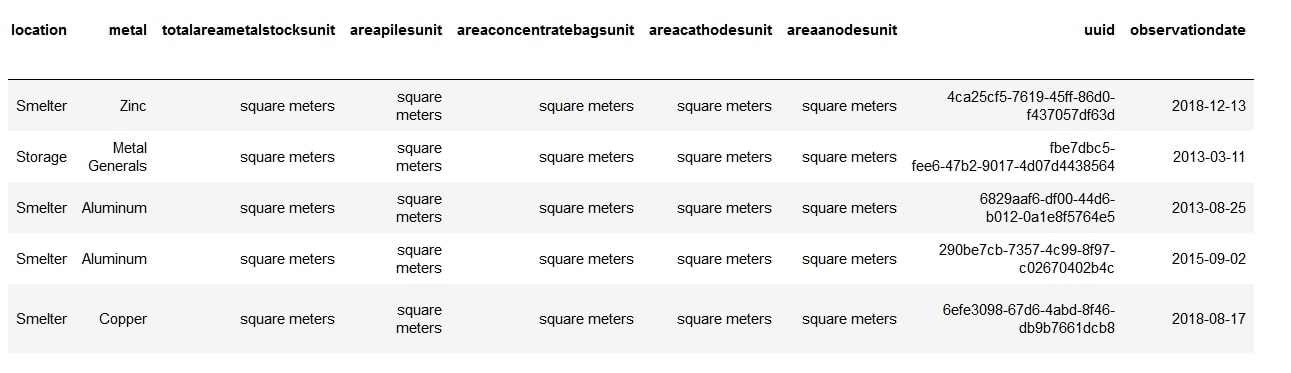
- If you take a look at the result of our .head() command, you will see that there are some columns that we can do away with. For example, the ‘ticker’ column contains the same value throughout the dataset. Scroll right and you will see the columns ‘totalareametalstocksunit’, ‘areapilesunit’, ‘areaconcentratebagsunit’, ‘areacathodesunit’, and ‘areaanodesunit’ do not provide much insights.
All these columns can be removed using the drop command:
data.drop(['ticker', 'totalareametalstocksunit', 'areapilesunit',
'areaconcentratebagsunit', 'areacathodesunit', 'areaanodesunit'],axis=1,
inplace=True)
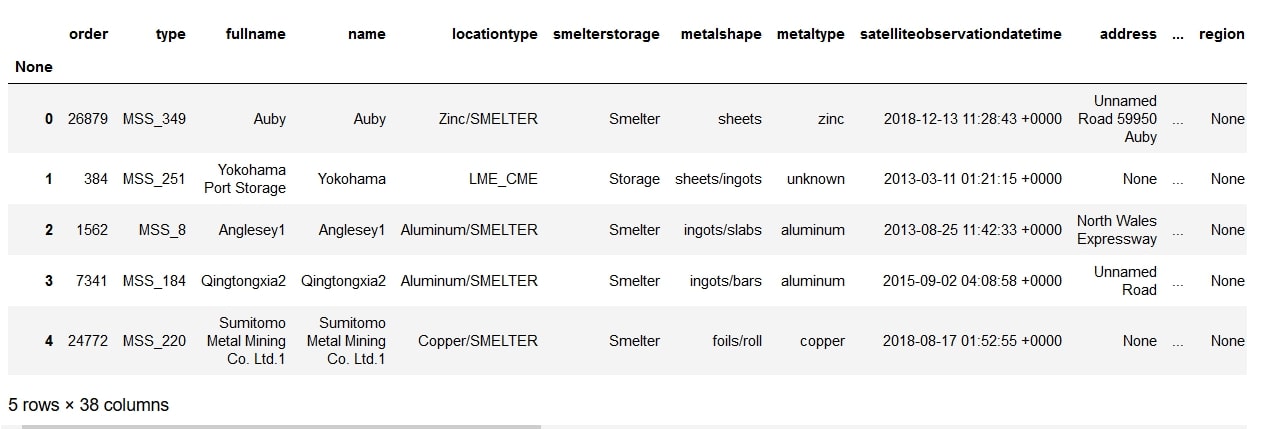
We managed to bring the number of columns down to 38.
- It’s also a good idea to see what data types are present in each column, so we know if there’s an anomaly present in the data. For this, we use the info() function. This function also tells us whether any columns have null values or not.
data.info()
We can see that our data set has 10 float, 4 integer and 23 object values and that some of the fields, like ‘country’, ‘areaanodes’, etc. have some values missing, since, the total number of records in them are less than 27872. For country, we can solve this problem simply by adding the line:
data = data.fillna(value={'country':'NA'})
This will add the initials ‘NA’ wherever the country name is not mentioned.
- Finally, there’s a really handy function available in pandas that sums up the entire data in a summary of important stats. It is the describe function.
data.describe()
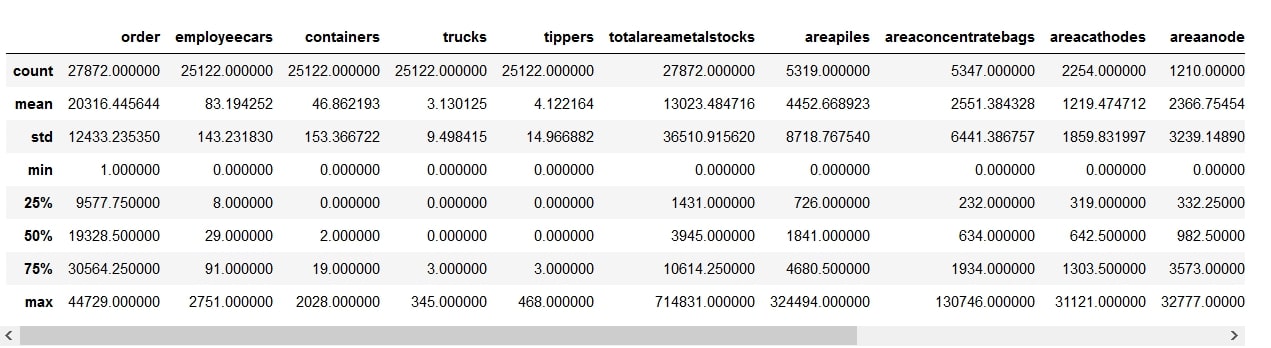
Using this function, you get the count, mean, standard deviation, minimum and maximum values, as well as different percentiles of the data. The Standard deviation (std) provides a useful means to look at the distribution of data. A high deviation indicates that the values are more spread out (flatter)...
By looking at the mean and 50th percentile (median), we can gauge the skewness of the distribution. A very high mean compared to the median will mean that there are some records with very high values.
The differences between the 75th percentile and the max value can also inform us that most of our columns are skewed. This means that there are some extreme values or outliers in the data set.
We may need to winsorize or trim some extreme values in future, if a normal distribution is desired.
Let’s now try to visualize the data to explore further.
Visualizing the Data
To visualize our data, we will use the Plotly express libraries. When used in collaboration with cufflinks, it lets us explore our data with some real fancy visualizations.
- Let’s first create a correlation chart to check the correlation between features in the dataset. Pandas lets you do this using the .corr() function
data.corr()
Although this gets the job done, you can get a more visual and helpful way to look at the correlations if you combine this with cufflink’s iplot command. It is a bit more work but who doesn’t love some slick visualizations?
data.corr().iplot(kind='heatmap',colorscale="Blues",title="Feature
Correlation Matrix")
This command gives you a correlation heatmap which helps better visualize the data. The darker shades represent a higher positive correlation and lighter shades represent a lower correlation.
From the above heatmap, we can see that there is a strong positive correlation between the total area of cathodes and anodes, which makes sense because it’s the anodes that get purified to make the cathodes. There also seems to be a strong positive correlation between the total area of metal stocks and the area of anodes. The values for anode and cathode deposits only apply to copper. So the heat map tells us that most of the copper metal stocks are unpurified.
We also notice that there is almost no correlation between the total area of bagged concentrates on-site and the area of anodes, and the number of employee cars on a day does not really depend upon whether it’s a weekend or not.
- Next, let’s look at the distribution of data using a box plot. A box plot or a box-and-whisker plot helps us see the distribution of quantitative data in the form of a five-number summary:
- Minimum
- First quartile
- Median
- Third quartile
- Maximum
The box represents the first quartile (1), median (2) and third quartile(3), in other words, the Interquartile Range (IQR). The whiskers extend to show the minimum (5) and maximum (4) values.
Let’s make a country-wise box plot of employee cars that the satellites picked up.
fig = px.box(data, x="countryname", y="employeecars")
fig.show()
Boxplots are a great way to quickly find outliers in the data too. For example, if you zoom in to the box plots for France, Japan and the UK, you will find:
There are no outliers for the data picked up in France, just a few outliers in the UK data and a lot of outliers in the Japan data.
You can also plot aggregated values from Pivot tables. For example, say you want to see the country-wise distribution of the total area of metal stocks. You can then obtain the box plot for it as follows:
data[['countryname',
'totalareametalstocks']].pivot(columns='countryname',
values='totalareametalstocks').iplot(kind='box')
- We can check for skewness in the data distribution using both a box plot as well as a Kernel Density Estimate (KDE). However, a KDE helps better understand a boxplot and gives a good visualization of the distribution’s shape.
data['totalareametalstocks'].plot.density()
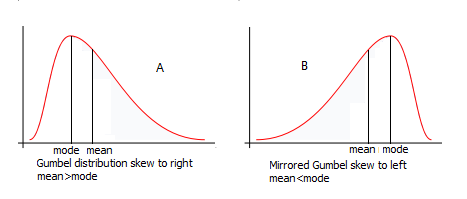
This shows that the variable is right-skewed. In other words, the probability of finding larger areas of metal in the distribution is less than that of smaller areas.
- Finally, let’s use a bubble chart to visualize the amount/ area of metal deposits in different countries and how this has progressed over time.
df=data.loc[data.metaltype == 'copper']
We will now use this dataframe and plot the observation date along the x-axis.
We will plot the total area of metal stocks along the y-axis and display the bubbles color-coded according to country. To ensure the bubble sizes don’t get too large, we limit the maximum size to 30. The size of the bubbles will vary according to the area of copper stocks.
px.scatter(df,x='observationdate',y='totalareametalstocks',
color='countryname',size='totalareametalstocks',size_max=30)
This allows us to see copper deposits year-wise for different countries. There is a ‘zoom’ button that plotly express provides, allowing us to zoom into certain points on the chart. Let us zoom into the year 2018-2019 and see how the numbers have been the past 3 months.
We can see that, over the past 3 months, copper reserves in China have been increasing consistently. This could imply the global demand for copper is on the rise and hence an increase in copper price.
Another way we can visualize this data is to plot the chart according to port/region:
px.scatter(df,x='observationdate',y='totalareametalstocks',
color='fullname',size='totalareametalstocks',size_max=30)
This lets us identify the reserve level of an individual smelter. When combined with Global Supply Chain Relationships Data, we can predict the production activities of public companies who rely on copper as a raw material. One potential use case is to monitor the production of Tesla’s copper(key component in EV battery) suppliers to forecast the carmaker’s ability to meet production targets.
This sums up our EDA guide. In the next few parts of the series, we will form more hypotheses as well as explore the potential use case of the dataset when combined with other alternative data.
Do you have a unique idea or questions on how to use the dataset? Let me know in the comments section below!
Dr. Jinghao Ke is the CIO of JCube Capital Partners. He is responsible for designing and executing portfolio selection using a blend of statistical, machine learning, and deep learning techniques, grounded in domain expertise in Financial Economics. He also co-founded Research Room where he specializes in using business domain knowledge, computing, smart technology and scientific techniques to create new businesses that involve data and smart technologies and improve existing organization strategies, policies, processes and structures
More in Alternative Investments
Gold, Silver, Platinum, Palladium, Rhodium: Each Precious Metal Is Precious in Its Own Unique Way
Olegs Jemeljanovs, PhD, CFA·7 min
P2P platforms — the new goldmine for competitive business intelligence
Andrius Palionis·6 min
Alternative Data—a Gold Mine for Real Estate Market Investors
Gediminas Rickevičius·6 min